Loading...
Uploader

The Best Platform For Offline Transfer
App screen
App screen

Access on all devices

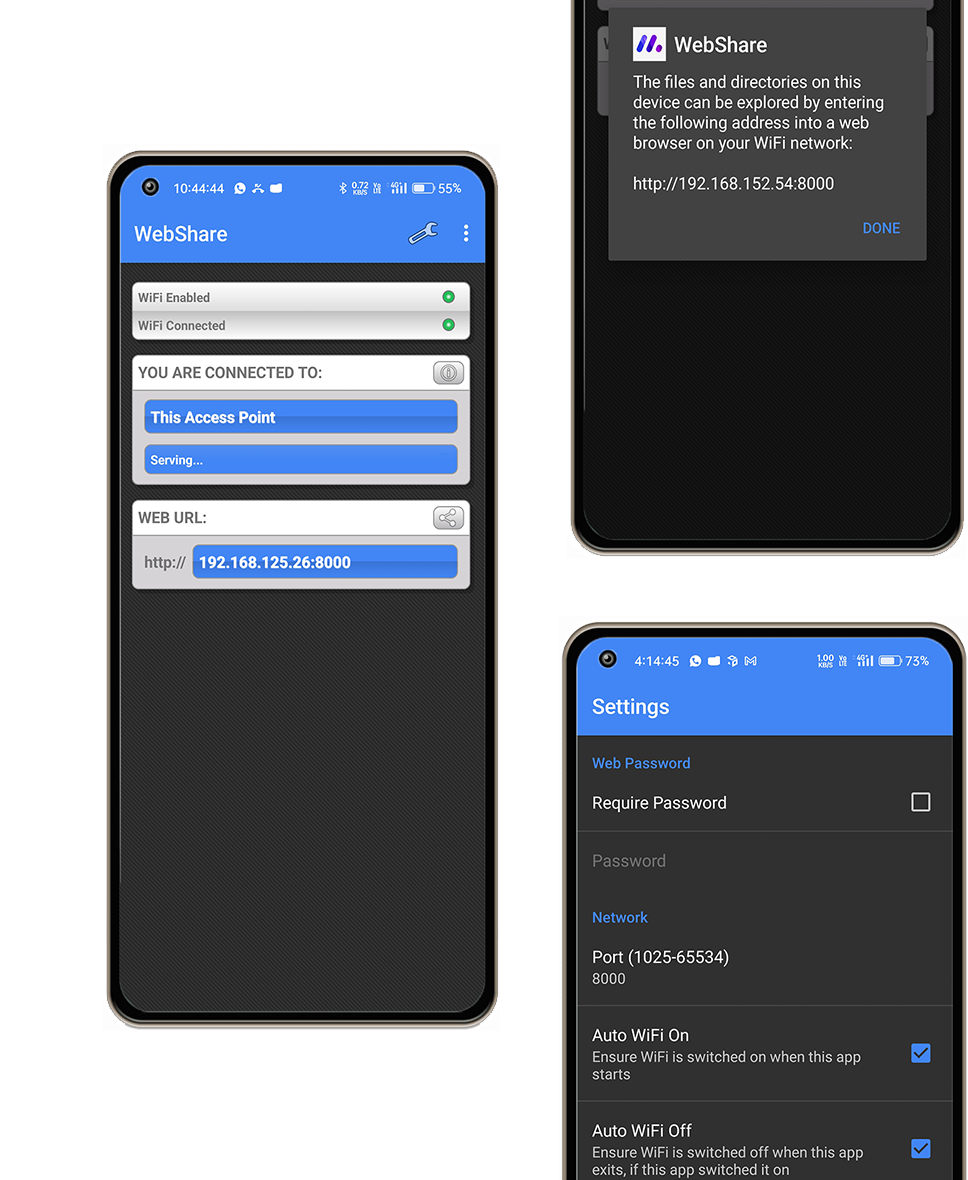
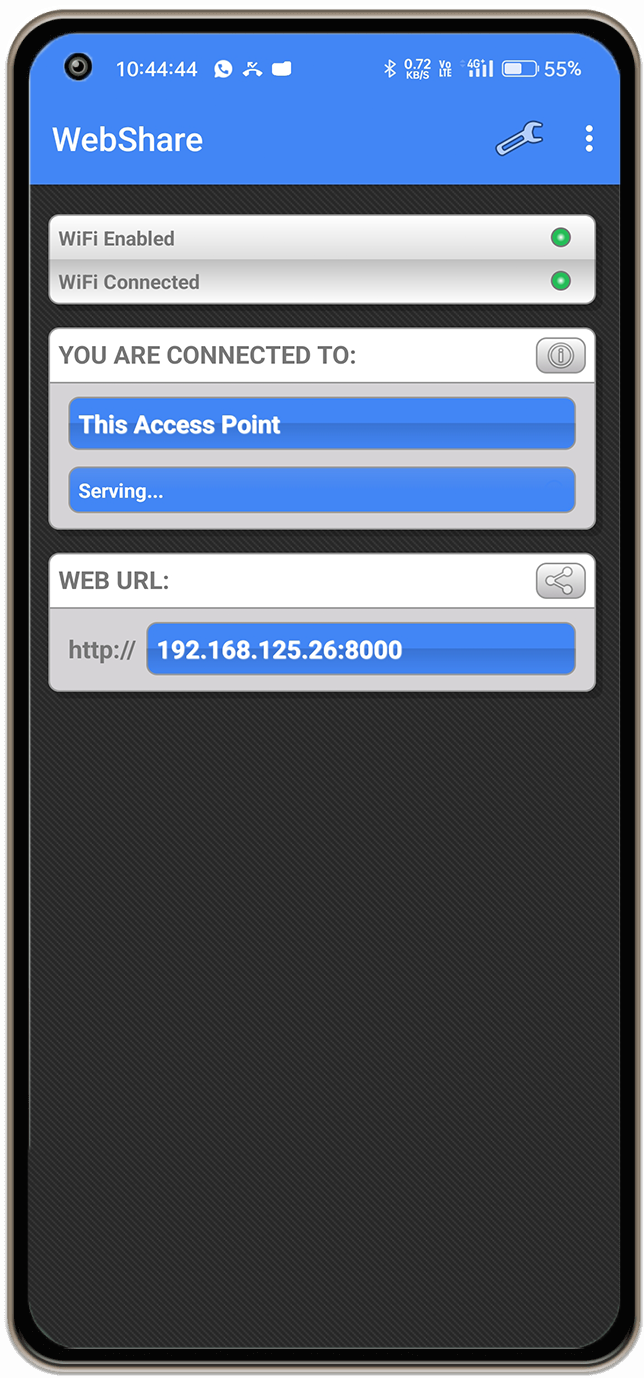
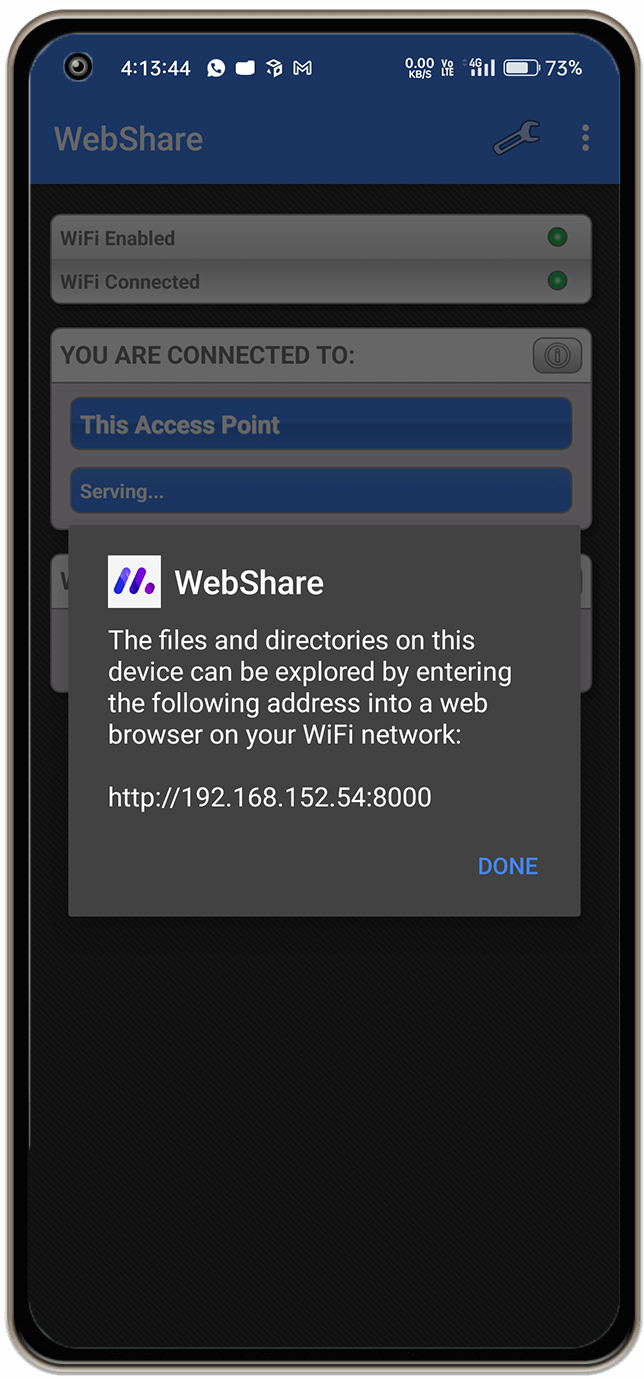
Using a web browser, you can browse and download all the files on your Android device without needing any cable.

Website Streaming

View all the camera pictures, videos and music of your device streamed directly in a web browser.
App screen

Multiple File Upload

Many batch file uploads and downloads to save you time when transferring many files at once

SSL Protection

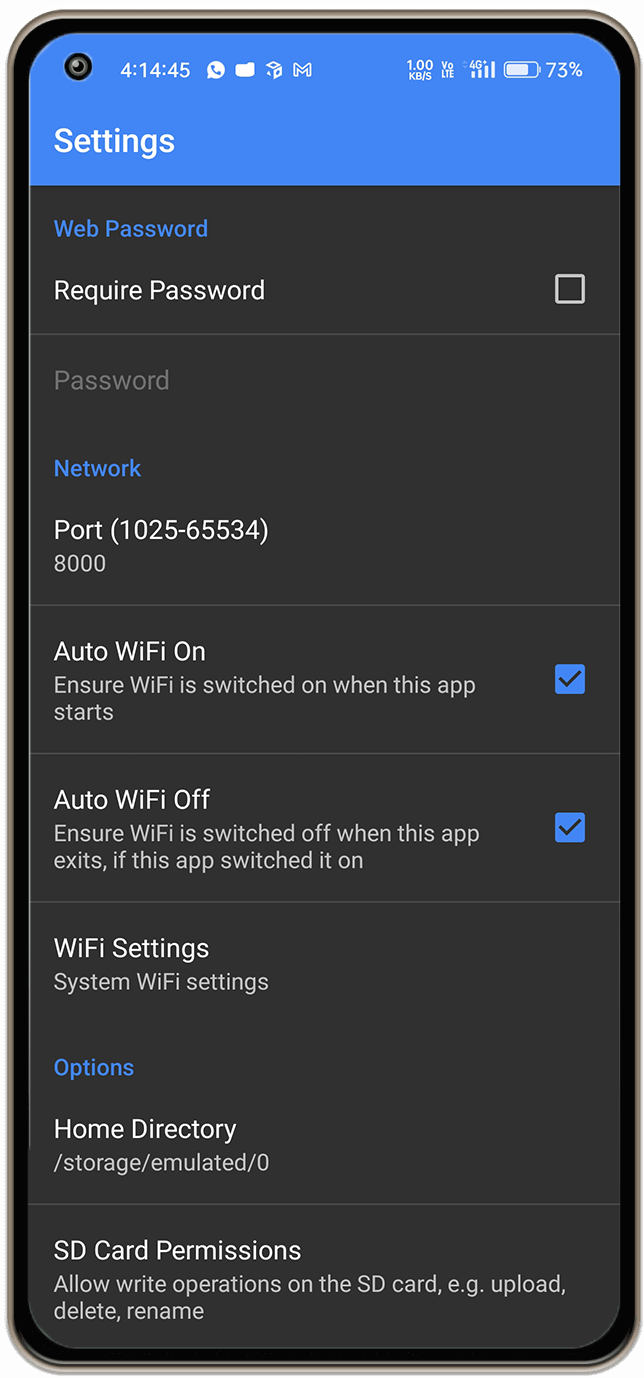
Web password to prevent unwanted access. Special “Development Goodies” mode to enable SSL protection


Layer1
Layer2
Layer3
Layer4
Layer5
Layer6
Layer7
Layer8
Layer9
Layer10
Layer11
Layer12
Layer13
Layer14

Offline Sharing has already been chosen by many people

  • Simple to use with no set up or buttons
  • Web password to prevent unwanted access.
  • Ability to configure the port settings

AwardAward
AwardAward

Users who recommend WebShare

Nick Williams

This is great when you can't get something simple like your computer to recognize your phone or tablet via USB! The create file button "statistics and actions" don't make it easy to find when you are looking at the other action above the file.

Lili Bocouse

OMG, this app is a lifesaver, ignore every review that says they are having problems with this app, coz it's either their network issue or mobile issue because this works perfectly fine here and I have tested it with a 14gb zip file.

Esther Howard

The best app I ever found to transfer data from mobile to pc without any inconvenience.. works even on phones hotspot even if internet access is denied.. a very efficient and easy way to transfer data wirelessly.

Jane Cooper

The interface needs a lot of work. It connects fine and works fairly well if you are copying to your phone from a PC. However, copying from your phone to a PC is a nightmare.

Any questions? Check out the FAQ

Some common queries about this application before emailing us ...

Yes, You can access all the future of this app so you can say this is a trial version but as of now, it's Totally free of cost. This PRO version is unlimited life Spam

Go to Settings in the WebShare app and click the new SD Card Permissions option. It will show a popup that briefly explains what you need to do: "Select the SD card (the top-level, not a subfolder) from the following file chooser dialogue to allow write operations, e.g. upload, delete, rename, etc.". You are essentially choosing an area of storage that you say this app can have permission to read & write

Most of the time when people are using WebShare to transfer and manage files, it is often related to media-type files; MP3s, pictures, movies, etc. This means it is quite important to understand just how Android manages those files so that they appear in the applications that use them, like the Gallery and Music applications.

Well, that has now changed with the latest update to the application. Now when you click the 'Create Copy' action next to a file (or a directory now as well) you will be given a popup dialog with contains the path to wear you want to create that copy. By default, it gives the current directory, but you can specify any directory you like that you have permission to write to, or you can create a new directory by typing it into the dialogue, again as long as you have permission to create it in that location. Then when you hit 'OK' it will copy the file/directory you have chosen, paste it in the location you specified and then reload the page into that pasted location ... hey presto - copy & paste!

This version is Totally free of cost. That PRO version comes with unlimited transfer speed.
Background flower

Ready to
Get Started?

App Store
App screens